
This document provides instructions on how to install the Preemptive AI for Verse extension in Chrome.
To use the extension, you must have Preemptive-AI for Domino installed and operational, as it communicates with an agent in the AI-Proxy database.
- Open Chrome
- Go to https://chromewebstore.google.com/detail/preemptive-ai/fpalehlgnknlgcalkeifccempfamfgal
- Click on the Add to Chrome button.
- The extension needs to be able to read and change data, so when asked, click "add extension"
- The extension will now be installed. You now need to configure it.
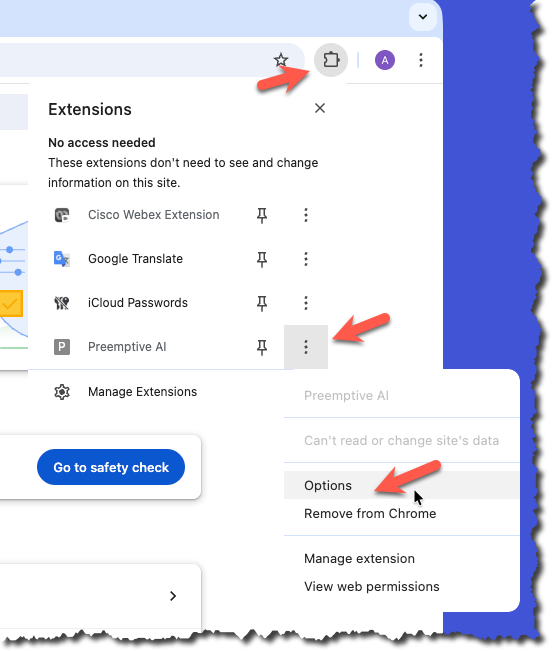
- In the top right corner of Chrome you should see a jigsaw icon; click on it, then click on the three dots Next to the Preemptive AI extension, and finally click on Options. The options for the extension should now appear.
- Configure the Remote Service URL to match your environment or what Preemptive has given you, and save the setting.
This URL will be the complete path to the AI-Proxy.nsf so the extension can call the ProcessWebRequest agent. It will be in the form of:
https://domino.server.domain.name/ai/ai-proxy.nsf/ProcessWebRequest?OpenAgent
- Close the tabs that have just been opened.
- That completes the installation process.
Testing the extension
- Open Verse
- Compose a new email
- To use the feature, select some text in the email, right-click to open the context menu, then choose 'Preemptive AI' followed by the specific function you wish to try.